Admin Portal
The Admin Portal is where everything starts when setting up the platform. Once your dedicated server is up and running, you’ll get access to the portal — usually at admin.company.com. When you visit the link, you’ll land on a login page and find that much of the system is already pre-configured and ready to go.
Dashboard
- Trading Exposure
The dashboard will give you a view to monitor the trading activites , clients, trading accounts, managers, groups ..etc defined in the system
- Traffic
Overview of the traffics from diffrents source in the platfrom
- Perfromance
Overviewe of hosting server & platfrom perfromance , good indicator during peel time
Market Feed
The first step in getting the trading platform up and running is connecting to a Market Feed. The system is built to support multiple feed providers using various protocols — with FIX and TCP/IP being the most common. Among them, FIX (Financial Information eXchange) is the most widely used industry standard.
We’ve made this easier by providing pre-built FIX connectors for versions FIX 4.1 to 4.3. These connectors are configured at the server level and are ready for use as soon as your server is assigned.
The Data Feed Connector is built using the FIX protocol, supporting integration with major market data providers. We’ve already developed connectors for several leading sources, and additional connectors can be added as needed to meet broker-specific requirements.
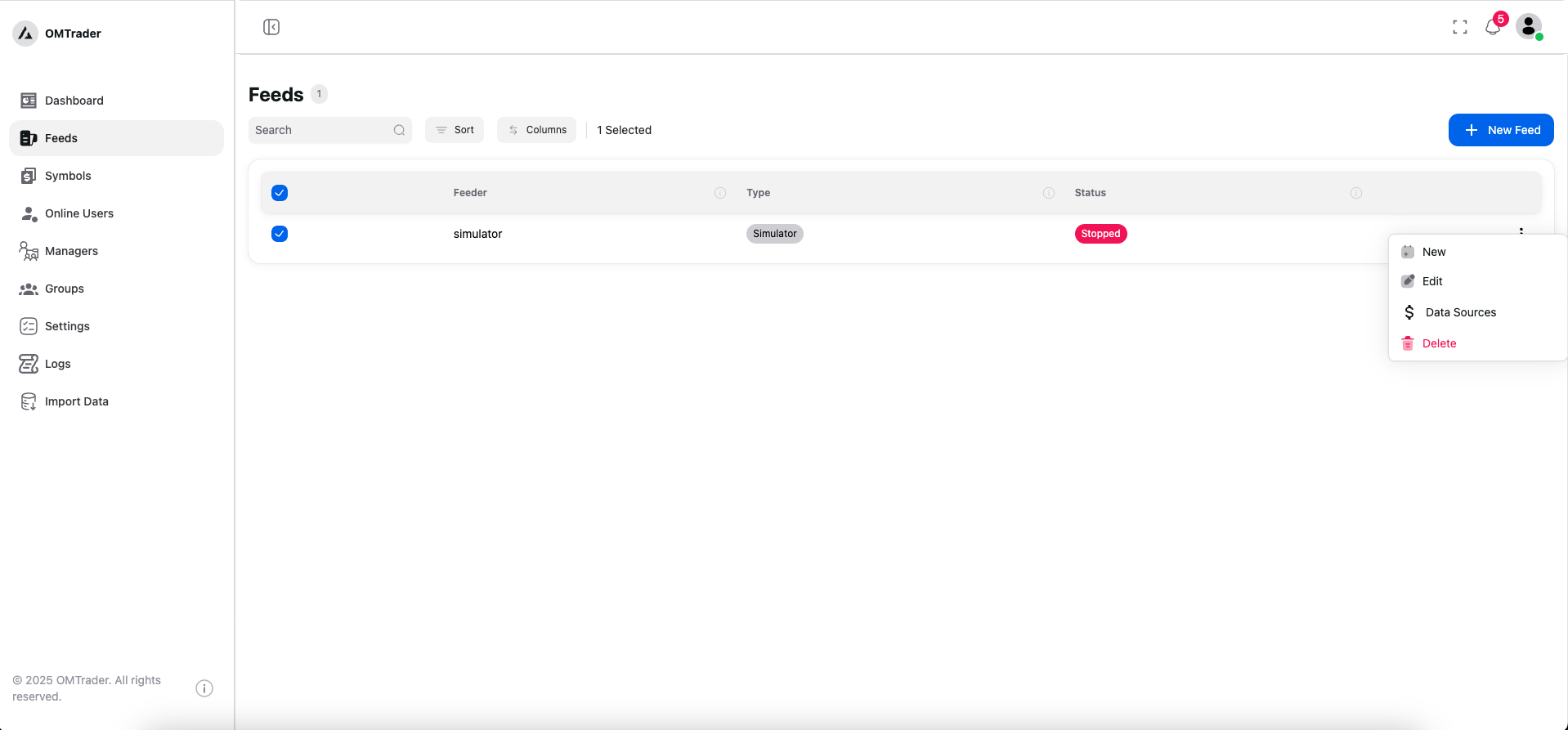
To help you explore the platform right away, OMTrader also comes with a built-in FIX-Simulator connector. This simulator gives you a head start by allowing you to test and explore the system without needing a live market feed. It’s perfect for initial setup, training, and educational use.
Data Source
Once your market feed is configured, it’s a common and recommended practice to map the feed provider’s symbols to your own custom symbols. This approach gives you greater control and flexibility when working with different market data sources — whether they’re aggregators or direct exchange connections.
Provider symbols can often differ in format or naming conventions. By mapping them to your internal symbols, you ensure consistency across your trading platform. This also future-proofs your setup: if a provider updates or changes a symbol name, you only need to update the mapping — not your internal trading logic or configurations.
In short, symbol mapping keeps your system stable and in control, even as external feeds evolve.
Symbols
Trading Instruments & Symbol Mapping
Trading instruments — whether in Forex or Stocks — are typically identified by unique symbols.
- In Forex, instruments are represented as currency pairs (e.g.,
EURUSDfor Euro vs. US Dollar). - In Stocks, each instrument usually has a single symbol (e.g.,
MSFTfor Microsoft).
When setting up your data sources, you need to map the symbols provided by your market feed to your internal system symbols. This ensures your trading platform can interpret the incoming data consistently, regardless of naming differences from the provider.
The table below shows a simple example of how this mapping might look:
| Instrument Type | Internal Symbol | Provider Symbol | Feed Provider |
|---|---|---|---|
| Forex | EURUSD | EUR/USD | FXFeedPro |
| Forex | USDJPY | USD/JPY | FXFeedPro |
| Stock | MSFT | MSFT.OQ | NASDAQ Direct |
| Stock | AAPL | AAPL | MarketDataAggregator |
This setup allows your platform to remain stable and consistent, even if providers change their symbol formats — you only need to update the mapping, not your trading logic.
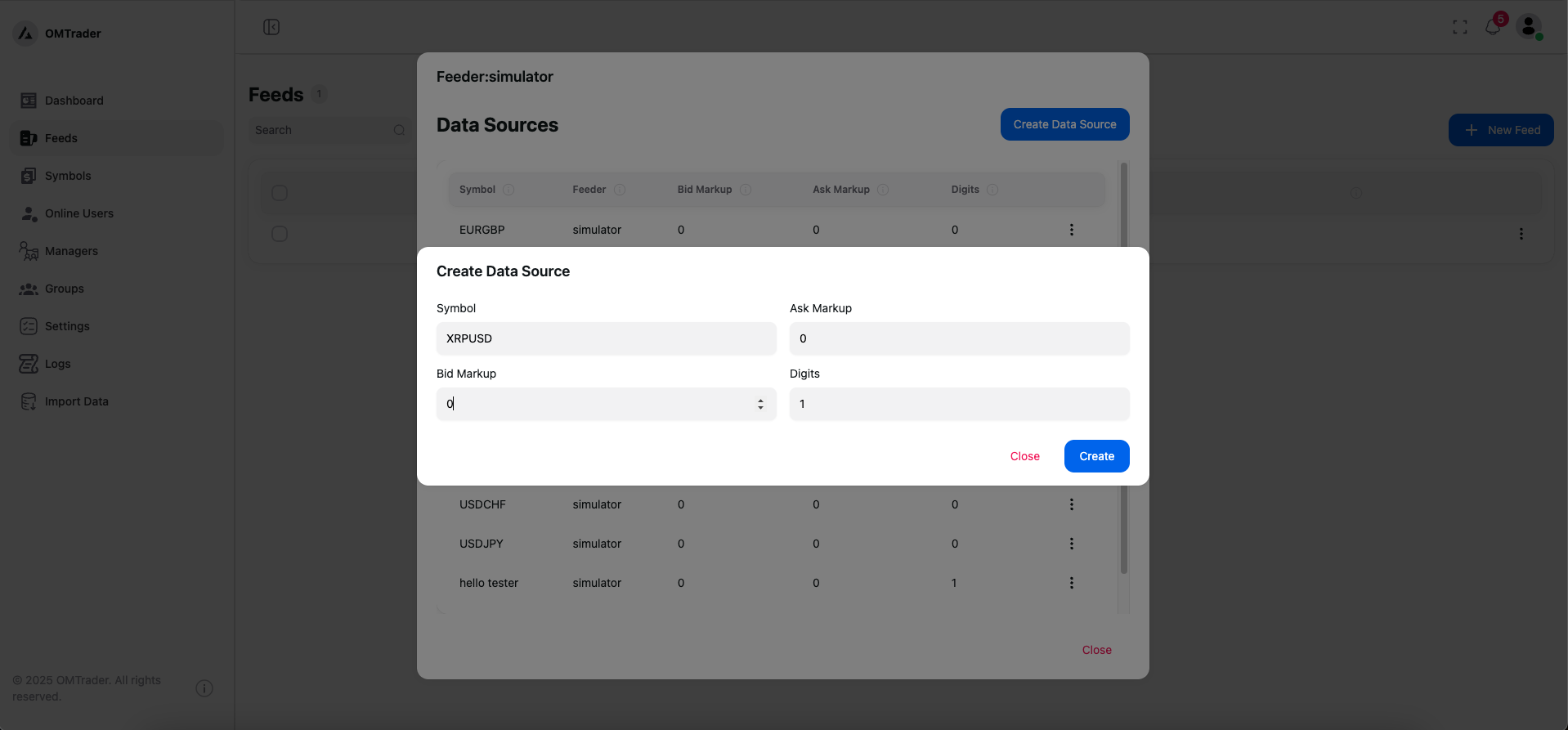
This screen allows administrators to create a data source for a market feed using the simulator feeder. Data sources define how individual symbols (instruments) are fed into the trading platform, including optional markup and formatting.
Symbol: Enter the symbol name you want to register (e.g., XRPUSD). This is the internal identifier for the trading instrument.
Bid Markup: This optional value lets you apply an offset to the bid price received from the data feed. Use this to simulate market spread, latency, or pricing strategies.
Ask Markup: Similar to bid markup, this value adds a specified amount to the ask price. It’s useful for testing order fills with wider spreads.
Digits: This field determines how many decimal places are shown in the price. For example, setting 1 would display prices like 0.5, while setting 4 might display 0.5000.
Symbols Class
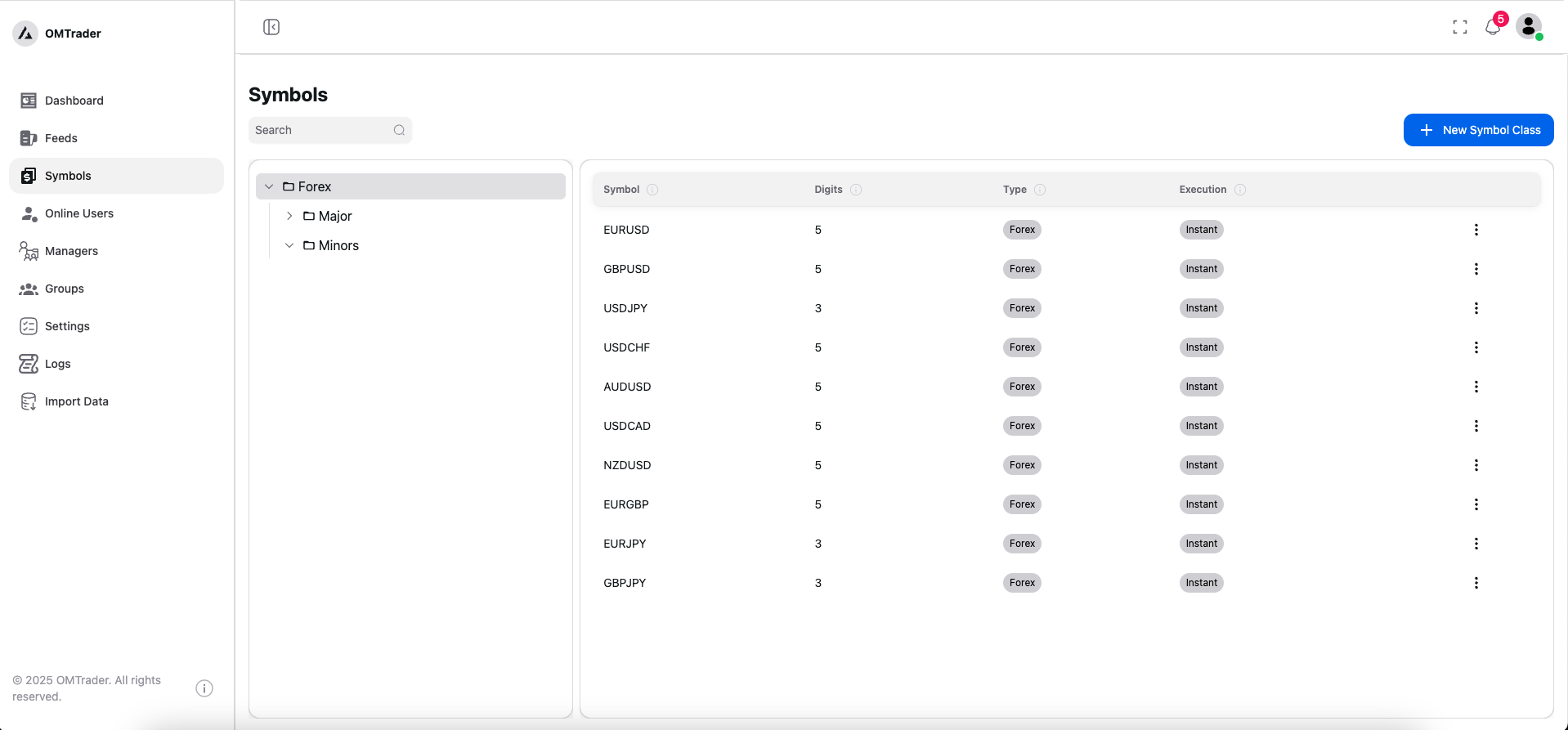
In OMTrader we have two the concept of symbol class, a way to organize symbols for better reference to real-world termoonlogies, the symbol class is a group classfication, like FORx , Stocks, FORX can also have sub class majors include EURUSD, minors , metal include gold, sliver , etc.
To make it easier we have tree like structure that you can define your symbol calsses,
Trading Symbol Configuration
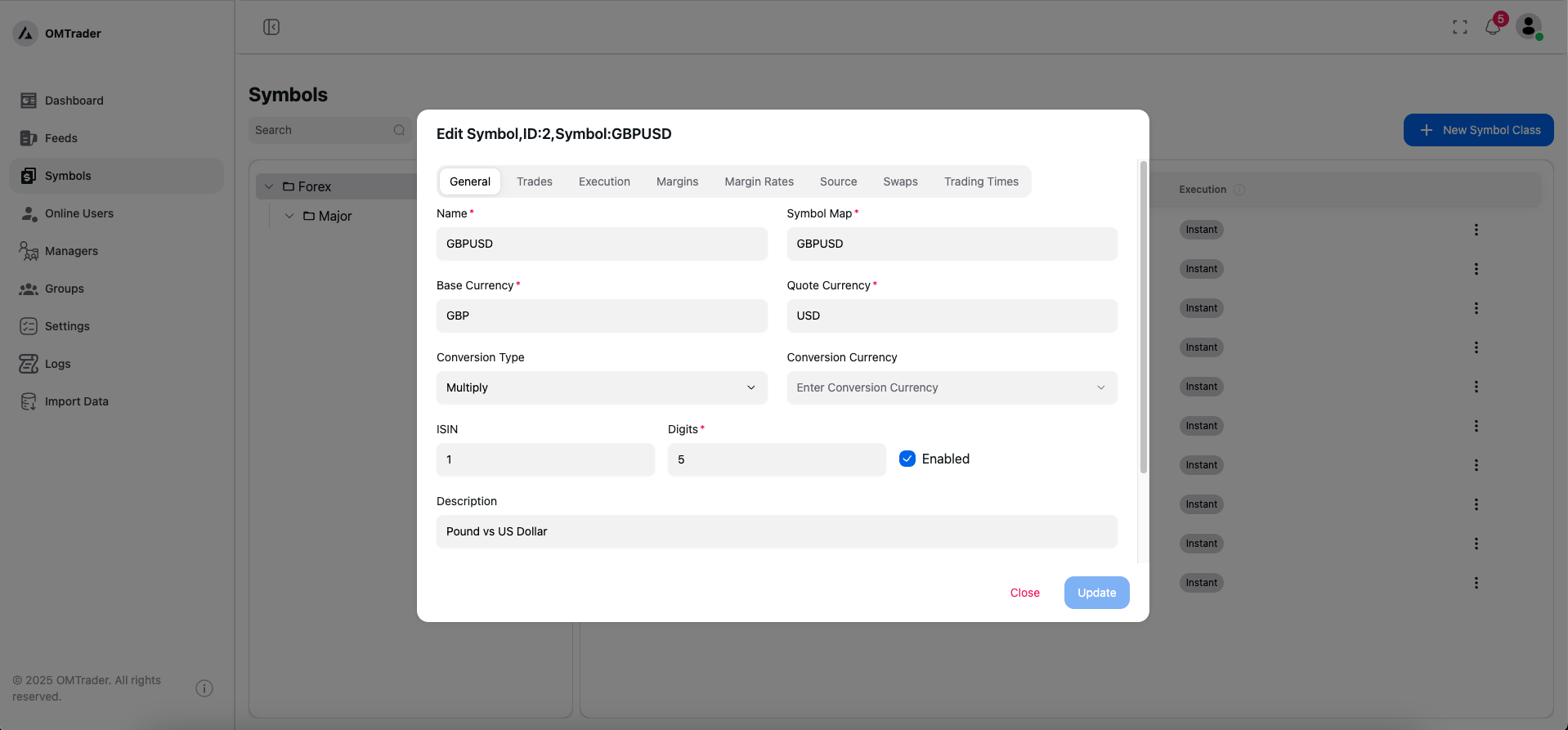
In OMTrader, once you’ve configured your market feed, set up your data sources, and completed the necessary symbol mappings, the next step is to define your trading symbols. These are the symbols that will be visible and tradable through the web and mobile applications.
OMTrader is designed for a seamless user experience, eliminating the need for desktop installations. By leveraging modern web technologies, OMTrader brings powerful trading capabilities directly to your browser or mobile device — anytime, anywhere.
This cloud-first approach reflects today’s technological shift, making trading faster, more accessible, and easier to manage without the complexities of traditional software installations.
Data Source mapping is important concept and may cuase the market feed to stop
Symbol-Specific Trade Configuration
Every trading symbol in OMTrader can have its own unique trade configuration. This allows you to customize parameters like order types, lot sizes, slippage, and risk limits based on the specific characteristics or strategy for that instrument.
To configure these settings, simply click the three dots (⋯) next to the symbol in the trading symbols list. From there, you can access and adjust all relevant trading parameters to fit your needs.
This flexibility ensures that each instrument behaves exactly how you want it to within the platform — whether for retail, institutional, or algorithmic trading setups.
Online users
OMTrader allow viewing online users